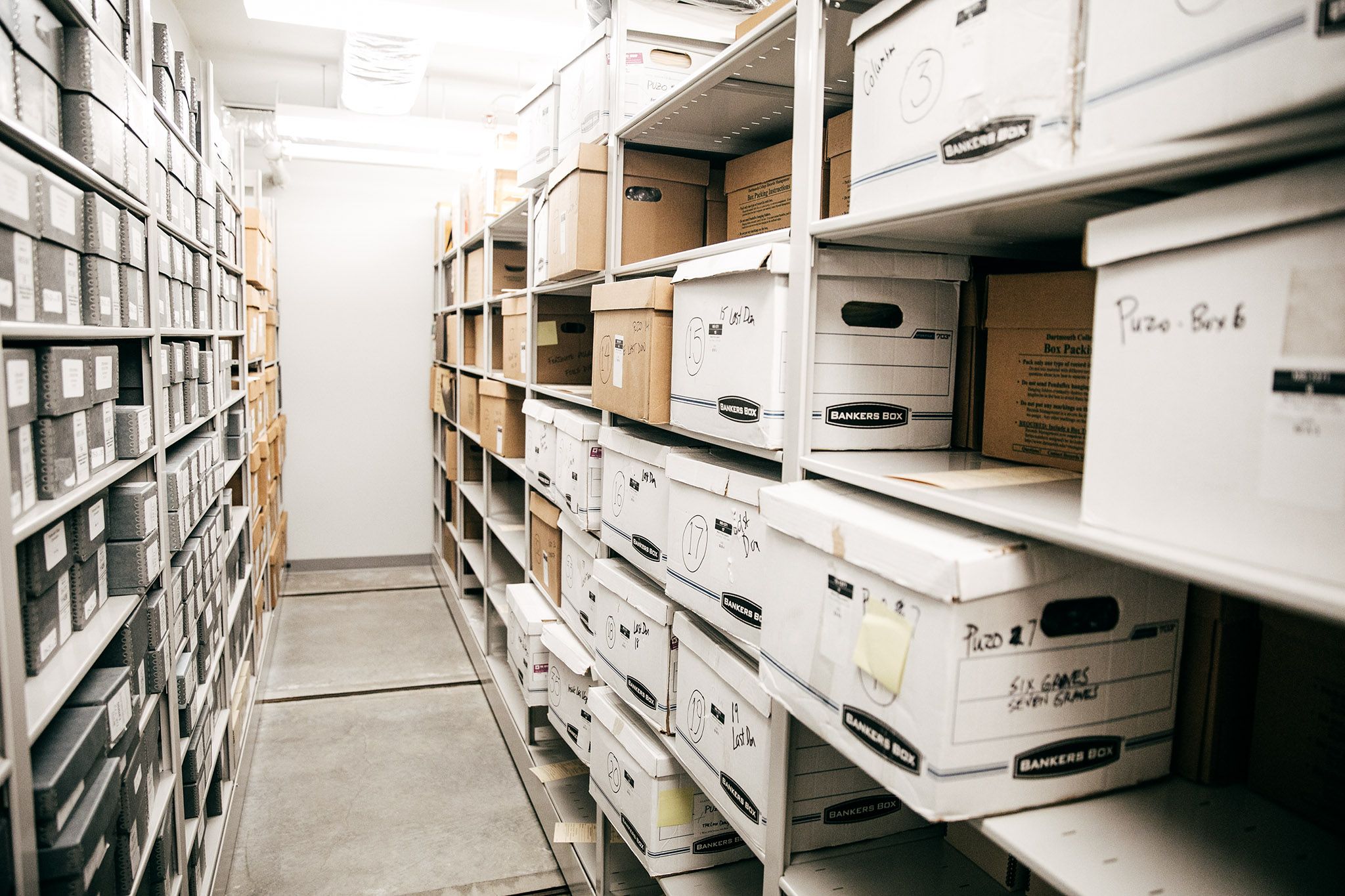
Welcome to Records Management!
The maintenance and control of Dartmouth's records is an institutional responsibility. To ensure all recorded information is managed in a way that best serves employee needs while satisfying the administrative, fiscal, historic, and legal requirements of the College, it is the responsibility of the Records Management team to assist departments and offices with:
- File plan and retention schedule development
- Physical records storage, retrieval, and destruction
- Monthly confidential shred
- Training
- Digitization planning
- Shared drive file management
- Developing filing systems and file-naming conventions
In short, we’re here to help staff and faculty with any records related questions whether you are trying to manage legacy paper files or are struggling to organize your office's shared drive. Email Records Management to set up an appointment, training session, or for any questions regarding our services.
It is essential to understand that all College records are the property of the Dartmouth College Trustees. This means that while we refer to records as belonging to us, or to a particular office or department, they are all part of the College record and must be treated as such.
Retention and Disposition
Have you ever asked yourself the following questions about a file or document:
- How long do I have to keep this?
- Can I throw this away or delete it?
In records management terminology, you’ve asked yourself about retention and disposition.
An approved retention schedule sets out the required retention periods and grants permission to either destroy or transfer the records at the end of that period. The General Retention Schedule (GRS) is the primary source of retention requirements for the records created and received by the College. Access the General Retention Schedule
Although the GRS covers many types of records created at Dartmouth, your office or department may create unique records that are not represented in this GRS. Records Management works with offices and departments to create supplemental retention schedules for records not appearing in the GRS. If you do not find an entry in the GRS, please contact Records Management and we will be happy to discuss them with you.
The Records Management Policy Committee (RMPC) is a broadly representative body tasked by the Library, as representative of the Board of Trustees, to advise, assist, and support the development and maintenance of a comprehensive records management program at Dartmouth College. This RMPC is charged with approving all retention schedules as well.
The committee is composed of representatives from the following departments:
- Special Collections
- Records Management
- Dartmouth Library
- ITC
- HR
- OGC
- Controller
- Advancement
- Risk Management
RMS Online
RMS Online is the system that allows users to access their catalog of records stored off-site at the Records Management Center.
Confidential Monthly Destruction
Boxes of materials (e.g. paper, microfilm, microfiche, digital storage media, etc.) for confidential destruction will be picked up on the first Wednesday of every month except for June. There is no cost associated with this service.
Please call the Work Control Office at 603-646-2508 or email the Work Control Office. Be sure to indicate where you are located and the number boxes to be picked up. You must contact the Work Control Office at least three working days prior to the pick-up date.
All material sent for destruction must be confidential in nature. Non-confidential paper material may be recycled in regular paper recycling bins located across campus. Please do not include trash in this material. Remember, destruction is a costly service that is being provided free of charge. If you have questions about what constitutes confidential material, please email Records Management.
Records Management Center Delivery Schedule
Records Management makes one delivery run each day. Any requests made before 3:00pm will be delivered the next business day. Requests made after 3:00pm will be delivered in two business days.
Due to a staffing crunch we will be reducing our delivery schedule to Monday, Wednesday, Friday until further notice. This means:
- Records requested on Friday will arrive on Monday.
- Records requested on Monday will arrive on Wednesday.
- Records that are requested on Wednesday will arrive on Friday.
In the event that you have an urgent need for records to be delivered on a Tuesday or Thursday, we will do our best to accommodate such requests.
Records Management Terminology
ARCHIVAL
A very small percentage of records will be given an archival designation because they have continuing value to the institution. Most records that are considered archival will receive this designation because they have historical value, but some records will receive this designation because they have continuing fiscal or legal value.
ADMINISTRATIVE COPY
An unofficial copy of a record that is maintained near the user for ease of access and reference.
CONTINUING VALUE
Continuing Value is the usefulness or significance of records based on the information they contain that justifies their ongoing preservation.
DISPOSITION
Disposition is the actions taken to fulfill the requirements outlined in retention schedules to retain, destroy or transfer records. Note that disposal is not synonymous with destruction, though destruction may be one disposal option.
ELECTRONIC RECORD
Any record that is created, received, maintained and/or stored on on-premise servers and/or in College-managed cloud services, regardless of the application used to create that record. Examples of electronic records include, but are not limited to, electronic mail, word processing documents, spreadsheets, and databases.
FILE PLAN
A classification scheme that organizes records according to business function, across a department or division. It includes retention schedules and disposition methods, document descriptions, archival value of records, indexing keywords.
INACTIVE RECORD
Once a record has passed its useful stage it is considered to be inactive. The inactive period will vary depending on the nature of the record, but generally a record is inactive if it has not been referenced in more than two years.
OFFICIAL RECORD
The record that is retained in accordance with the approved retention schedule for legal, administrative, fiscal, and/or historical purposes.
PERSONAL FILES
Personal files (also called personal papers) are documentary materials belonging to an individual that are not used to conduct College business.
RECORD
Information created, received and maintained as evidence, and as an asset by the College; or its faculty or staff, in pursuit of legal obligations or in the transaction of business. This information, regardless of physical format or characteristic, must be maintained to meet the administrative, fiscal, legal or historical needs of the College.
RECORDS CUSTODIAN
A single individual who best understands the record systems of their office and is able to make decisions regarding the retention and disposition of their records.
RECORDS LIFE CYCLE
The Records Lifecycle is a concept that draws an analogy between the life of a biological organism, which is born, lives and dies, and that of a record, which is created, is used for as long as it is needed for business purposes and is then disposed of either by destruction or by transfer to archival custody.
RETENTION
Retention is the function of preserving and maintaining records for continuing use. Records may be retained in the system of origin, or transferred to a separate repository such as an offline system or records center.
RETENTION PERIOD
A retention period is the length of time that records should be retained in an office or records center before they are transferred to archival custody or destroyed. The retention periods chosen for different records should be based on legislative or regulatory requirements as well as on administrative and operational requirements.
RETENTION SCHEDULE
A Retention Schedule is a document that identifies the records of an organization or administrative unit and specifies which records should be preserved as archives and which can be destroyed after a certain period of time. The retention and disposal schedule provides ongoing authorization for the transfer of records from offices to records centers, along with the destruction of obsolete records and the preservation of archival materials.
R.O.T.
ROT is the acronym for records that are redundant, obsolete, or trivial. It is information scattered throughout the enterprise that has no value that legally can and should be destroyed. Examples include duplicates, copies, drafts, out of date material, legacy records, etc.
SERIES
The level of arrangement of records that brings together documents or files relating to the same function or activity or having a common form or some other relationship arising from their creation, receipt or use.
STRUCTURED DATA
Structured data refers to data that is organized and formatted in a specific way to make it easily readable and understandable by both humans and machines. This is typically achieved through the use of a well-defined schema or data model, which provides a structure for the data. It is typically tabular with rows and columns that clearly define data attributes. Examples of structured data include names, addresses, credit card numbers, telephone numbers, star ratings from customers, bank information, etc.
UNSTRUCTURED DATA
Unstructured data–typically quantitative–refers to data that does not have an identifiable structure or organization as it does not conform to a predefined data model. It can't be easily stored in a traditional column-row database or spreadsheet. Unstructured data includes content such as emails, images, videos, audio files, social media posts, PDFs, and much more.


