Procedure for Manually Creating and Preparing Files for Labels Production
Scope
This document will cover:
- how to locate and sort the labels review file
- how to prepare the file for transfer
Content
Part I : How to Locate and Sort the Labels Review File
- Login to Millennium
- Click on the Create Lists button
- Look for file #75 DLTG save labels. This is the review file for the labels.
- If it's there, then proceed with the next step.
If the review file is not found, GO TO OPTION 1 and FOLLOW DIRECTIONS ON THE SCREEN. - Highlight the review file
- Click on the SHOW RECORDS Button
- Open the 1st record - make sure it has the correct cataloging date and/or date in the 955 and/or date in the item record.
- If the date is correct from STEP 7., then proceed with the next step.
If the date is not correct, then GO TO OPTION 1. - Close review file and check the number of records to make sure it matches with the number of books on the truck.
- Click the SORT Button
- Choose bibliographic record/call# (see Figure 1. below)

- Click on sort/save
Part II : How to Prepare the File for Transfer
- After sort has completed from Part I above,
click on DATA EXCHANGE button - Choose under Select Process Output MARC records using FTS (out)

- Click Create C button
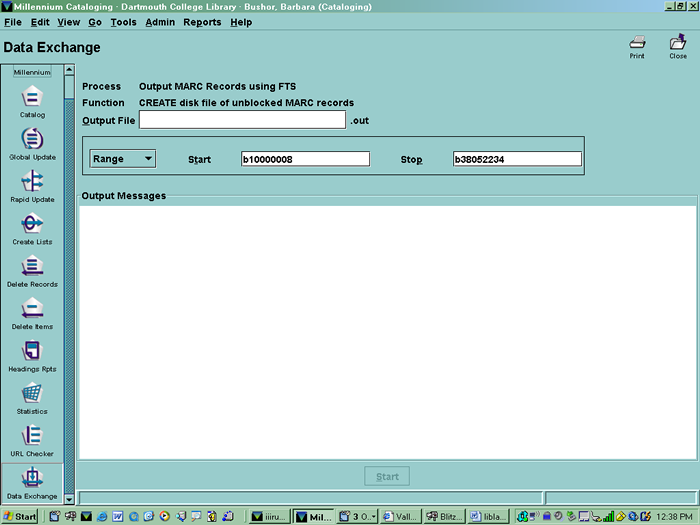
- In the Output file type: Labels
- Select Review and scroll down until you see DLTG Labels review file

- Click START

- Click on the Close button
- Go back to Procedure for Printing Daily Labels and choose option 2 when asked "Which of the following would you like to do?"